Showing posts with label Internet. Show all posts

Saturday, July 2, 2011

How to make mobile as modem & connect to internet using Bluetooth.


How to make your mobile as modem, how to connect to internet through Bluetooth,how to connect to internet using Bluetooth in windows 7 and windows XP,How to connect to internet without the help of PC suite,how to setup internet connection using Bluetooth in windows 7/windows XP,trick to connect internet using Bluetooth directly without help of PC suite,how to setup dial-up connection for cellphones.pairing of computer with bluetooth,Manual Bluetooth internet connection.How to connect to mobile broadband,.Connect Bluetooth internet from Nokia,Samsung,sony Ericsson,Idea,Vodafone,Aircel,Airtel,Max mobile,Uninor,Spice mobile,Tata docomo,Tata indicom,Micromax,Karboon,Dell,HTC many more

Last post we saw about how to setup internet using USB cable, now we'll see how to connect internet using Bluetooth.

Prerequisites for connecting internet through Mobile:
1) Make sure that your mobile can act as modem (90% of the phones which are available acts as modem)
2) Get the PC suite/Pc companion for your mobile phone
3) Turn on your mobile & laptop/computer Bluetooth.
4) Get the internet settings from your service provider.

Install PC suite first, because your computer has to detect your phone.

Pairing Your computer & Cell phone for the first time using Bluetooth.
1) Right click on system tray,select the bluetooth icon & go to Show Bluetooth device.

If you find, your mobile name appearing there, then right click on the device & do remove device
2) Then again right click on system tray,select the Bluetoth icon & go to add a device.


Computer will Search all available Bluetooth devices, select the appropriate one.

After selecting, pairing code will appear on computer screen.Some mobile may ask you to enter the pass code in mobile, some may ask you to ensure the code printed on screen is matching with the one your mobile is showing.

Once you finish the above step, computer try to configure your device.after that you will get confirmation in your mobile that Your mobile act as modem & PC can acces mobile etc..close the screen once the configuration is complete.


Steps to connect internet using Bluetooth:
1) Follow the above method first step i.e Right click on system tray,select the bluetooth icon & go to Show    Bluetooth device
Right click on your phone-->Dial up networking-->Create Dial-up


Then Select your Bluetooth Modem.


Dial up connection screen appears, enter the Dial up connection number
For Eg: vodafone karnataka Dial up number is *99***1#


8) Then click on connect, you will get a dialing screen & connection will get registered on the network.
    this may take 2 or 3 seconds, later you will get a screen. connection successful.   


The active Dial-up connection can be found at,
Control Panel---> Network and Internet --> NetworkConnections. 

To disconnect the internet connection Just right click on the active connection and click disconnect.

The above setup needs to be done at first time only, later on you just have turn on both Mobile & laptop/computer Bluetooth, system will automatically pair it, while pairing system automatically sends instructions to your mobile. once auto pairing is done,
go to Control Panel---> Network and Internet --> Network Connections. 

Double click on the Bluetooth Dial up connection which you had configured previously.


Then a screen appears, just click on dial, it will connect to internet automatically.
Happy browsing :)
is this information usefull? please provide us feedback.

Information about how to connect internet through USB is available here


How to make mobile as modem & connect to internet using USB.


How to make your mobile as modem, how to connect to internet through USB,how to connect to internet using data cable in windows 7 and windows XP,How to connect to internet without the help of PC suite,how to setup internet connection using data cable in windows 7/windows XP,trick to connect to internet using USB Directly,how to setup dial-up connection for cellphones.Connect USB internet from Nokia,Samsung,sony Ericsson,Idea,Vodafone,Aircel,Airtel,Max mobile,Uninor,Spice mobile,Tata docomo,Tata indicom,Micromax,Karboon,Dell,HTC many more

Are you struggling to connect to internet through PC suite?
Don't worry, here is the simple step to connect internet from USB Data cable directly without the help of PC suite.

Prerequisites for connecting internet through Mobile:
1) Make sure that your mobile can act as modem (90% of the phones which are available acts as modem)
2) Get the PC suite/Pc companion for your mobile phone
3) Keep the Data cable ready with you.
4) Get the internet settings from your service provider.

Install PC suite first, because your computer has to detect your phone.


Steps to connect internet using USB data cable:
1)Go to start-->Control Panel-->Network and Internet-->Network and sharing center.
2)Click on Set up a new connection or network.
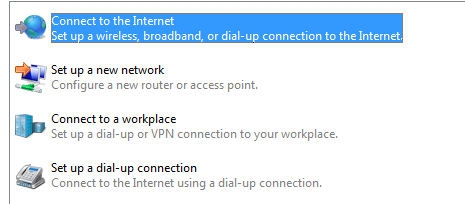
3)Select Connect to internet.


4)Dont worry about pre-configured dial up connection, select Create new connection and press next.


5)Then it will ask you How do you want to connect? Choose Dial-up option.


6)Click on your phone, which acts as modem.


7)Enter the Dial-up phone number,if you dont no the number please call up your service provider and get it.
     For Eg: Vodafone karnataka Dial-up number is "*99***1#"
     You can keep user name & password blank, its up to you.


8) Then click on connect, you will get a dialing screen & connection will get registered on the network.
    this may take 2 or 3 seconds, later you will get a screen. connection successful.   


The active Dial-up connection can be found at,
Control Panel---> Network and Internet --> NetworkConnections. 


To disconnect the internet connection Just right click on the active connection and click disconnect.

The above setup needs to be done at first time only, later on you just have to plug in your mobile to computer/laptop through USB & go to Control Panel---> Network and Internet --> Network Connections. 

Double click on the Dial up connection which you had configured previously.


Then a screen appears, just click on dial, it will connect to internet automatically.

Happy browsing :)
is this information usefull? please provide us feedback.

How to connect to internet using Bluetooth connection is available here

Tuesday, June 21, 2011

How to make Sony Ericsson cedar as modem.

How to access internet from Sony Ericsson cedar, How to access internet from your PC or laptop through cedar phone, how to make Sony Ericsson cedar as modem,how to browse internet in PC/laptop using Sony Ericsson cedar J108i phone.pc suite for Sony Ericsson cedar phone.access 3G internet from cedar phone.how to access internet from Sony Ericsson cedar with out pc companion/pc suite, how to access internet using Bluetooth,how to access internet in PC through Sony Ericsson cedar with just data cable.

When you purchase a new Sony Ericsson cedar 3G phone,you will get neither Data cable nor PC companion.So in order to connect your Sony Ericsson Cedar as modem you need to have a Data cable or PC companion software.

Make Sony Ericsson Cedar as Modem and surf through USB data cable.
1)Connect Cedar phone to laptop or PC using data cable
2)Automatically PC companion lite (limited features) version software gets installed. later download the full version from internet. here is the link for full version.
3)Get the internet settings in your mobile from service provider.
4)Make sure you are able to browse internet in your mobile.
5)Go to Settings-->Connectivity-->USB-->Advanced-->Internet Access then select  Internet Via phone option.
6)Launch your web browser and enjoy surfing internet.

Make Sony Ericsson Cedar as modem and surf through Bluetooth from your PC.
1)Download PC Companion software for Sony Ericsson Cedar phone, click  here for the software
2)Launch the PC companion
3)Click on internet connection option.
4)Enable Bluetooth in your PC as well as mobile
5)Click on the connect and choose Bluetooth(if you choose USB, you can browse through USB data cable) 
6)Get the internet settings in your mobile from service provider.
7)Make sure you are able to browse internet in your mobile.
8)Once you have done the connection, click on connect.
9)This is how the PC companion screen looks once it is connect to internet

You can follow the same step as mentioned above to surf internet via USB also, only the way you have established connection with PC varies.
Please drop comment if you find difficulty in connecting to internet from your CEDAR phone.


Facing problem in setting up of modem through PC companion?
For USB modem setup manually Click here
For Bluetooth modem setup manually Click here

Sunday, June 5, 2011

Railwire boradband internet plans

Railwire cheap broadband, cheap broadband plans in Bangalore, Railwire broadband in Bangalore,Railtel broadband plans in Bangalore,unlimited broadband for 320Rs, rail wire broadband plans,low price broadband services in Bangalore,rail wire broadband locations in Bangalore,rail wire broadband connection,rail wire broadband helpline,railwire broad band reviews, railtel broadband,railwire broadband in Garudachar,Palya,Hoodi,Seagehalli,
Dodanakundi,Madiwala,Siddapura,Domlur,Malleshwaram,Tippasandra,BTM,Palace Gutahalli, Marathalli,Indiranagar,Ramagondanahalli,Raj Palya,Jayanagar IV Block,Munnekolala,Yelahanka New town,how to apply rail wire online.how to apply rail tel online,railwire customer care number.


About Rail wire.


RailWire is an initiative of the RailTel Corporation of India Limited (RailTel), a Government of India enterprise, with a mission to make available “ICT to Common Man” & “Internet, Education and Health Services to Masses”.

RailTel was formed in Sept 2000 with the objective of creating nation-wide broadband, telecom and multimedia network, to modernize Train Control Operation and Safety System of Indian Railways. RailTel's network passes through around 5,000 stations across the country, covering all central business districts, towns, cities, mini/major-metros.

Rail wire internet plans


Home use, unlimited plan details of Railwire.

Plan No.
Port Speed*
Plan Rental** (INR) 

iRW002
256 Kbps 
320

iRW004
 512 Kbps
620

iRW006
  1  Mbps 
920
  
iRW008
 2  Mbps
1650


Combo plans of Railwire
Plan No.
Port Speed*
Monthly Rental **
Data Usage 
Yearly Rental **
iRWHUB012
256 Kbps
152
1GB
1,520 
iRWHUB014
256 Kbps
250
2GB 
2,500 
iRWHUB016
512 Kbps
550
4GB
5,500 
iRWHUB018
1 Mbps
700
5GB
7,000 
iRWHUB020
2 Mbps 
800 
6GB 
8,000 
iRWHUB022 
 4 Mbps
900 
7GB 
9,000 
iRWHUB024 
8Mbps 
1,500 
10GB 
15,000 
Note: Additional Usage will be charged 50 paisa per MB 


SME Access  Combo Plan of Railwire


Plan No.
Port Speed*
  Quarterly Rental **
Data Usage 
Yearly Rental** 
iRWCUB052
256 Kbps
2,100
4GB 
8,400 
iRWCUB054
512 Kbps
8,400
 21GB
33,600 
iRWCUB056
1  Mbps 
9,000
20GB 
36,000 
iRWCUB058
1   Mbps
12,000
30GB 
48,000 
iRWCUB060
2   Mbps
21,000
56GB 
84,000 
iRWCUB062
2   Mbps
24,000
66GB 
96,000 
Note: Additional Usage will be charged 50 paisa per MB
         Please call us to know applicable VAS absolutely FREE


Corporate unlimited plans of Railwire

Plan No.
Port Speed*
  Quarterly Rental **
Yearly Rental** 
iRWCUL082
256 Kbps
6,060
24,240 
iRWCUL084
512 Kbps
10,860
43,440 
iRWCUL086
1  Mbps 
18,060
72,240 
iRWCUB088
2  Mbps
36,060
144,240 
iRWCUB090
4  Mbps
63,060
252,240 
iRWCUB092
8  Mbps
108,060
432,240 


Port speeds are on 1:4 contention ratio

  **Plan Rentals are exclusive of applicable taxes and levies. Requests for refund will not be      entertained incase of payments against   'Yearly Rental'

 Note: Institution or industry having upto 5 computers is considered under Small and Medium Enterprise (SME). Please contact our customer care for other details.


Railwire(Railtel) broadband availability in Bangalore(location wise):

Garudachar Palya
Hoodi
Seagehalli
Dodanakundi
Madiwala
Siddapura
Domlur
Malleshwaram
Tippasandra
B.T.M Layout
Palace Gutahalli
Marathalli
Indiranagar
Ramagondanahalli
Raj Palya
Jayanagar IV Block
Munnekolala
Yelahanka New town


To apply online for Railwire broadband Click here
To know more about Railwire Click here
Railwire customer care number +91 - 80 - 6789 - 88 99/ 9743969988 / 9743968899
Email : connect@railwire.co.in